How Teachers Can Censor Videos for Classroom Use: Free Online Tool

Teachers know the struggle: you find the perfect documentary, TED Talk, or YouTube video for your lesson plan, but there's one problem—a few inappropriate words make it unsuitable for your students. Rather than abandoning great educational content, you can quickly censor those words yourself. This guide shows educators how to make any video classroom-appropriate in minutes.
The Challenge: Great Content, Inappropriate Language
Educational videos often contain valuable content that's almost perfect for classroom use:
- Documentaries covering history, science, or social issues may include quotes with profanity
- YouTube educational content from creators who don't filter their language
- News clips and interviews with unscripted moments
- TED Talks and lectures with occasional strong language
- Film clips that illustrate literary or historical themes
- Primary source recordings from historical events
Traditionally, teachers had two options: skip the video entirely or spend hours in complex video editing software. Neither is practical when you're preparing lessons for multiple classes.
Why Browser-Based Video Censoring Works for Teachers
Bleep That Sh*t! solves this problem with a free, browser-based tool designed for quick edits:
No Software Installation Required
School computers often have restrictions on installing software. Our tool runs entirely in your browser—no downloads, no IT requests, no administrator permissions needed. Works on Chromebooks, Windows PCs, Macs, and tablets. (See our Chromebook-specific guide for tips on school devices.)
Complete Privacy for Student Data
When editing videos that might contain student names or faces, privacy matters. Unlike cloud-based video editors, our tool processes everything locally on your device. Your videos never upload to any server. This helps maintain FERPA compliance and protects student privacy.
Fast Enough for Lesson Prep
Teachers don't have hours to spend on video editing. Our AI-powered transcription identifies words automatically, letting you censor a 10-minute video in just 2-3 minutes.
Free for Educators
No subscription fees, no premium tiers, no limits on video length. The tool is completely free for all users, including teachers and educational institutions.
Step-by-Step Guide for Classroom Video Editing
Step 1: Upload Your Video
Drag and drop your MP4 video file directly into the browser. The file stays on your computer throughout the entire process.
Supported formats:
- MP4 video files (most common for downloaded content)
- MP3 audio files (for podcasts or audio-only content)

The transcription interface showing your video being processed
Step 2: Generate an Automatic Transcript
Select your transcription model and click "Transcribe." The AI will:
- Convert speech to text automatically
- Identify individual words with precise timestamps
- Work with multiple languages and accents
Tip for educators: Start with the "Tiny" model for most classroom videos—it's fast and handles clear speech well. Use larger models only if you have heavily accented speakers or poor audio quality.
Step 3: Select Words to Censor
You have several options for identifying inappropriate content:
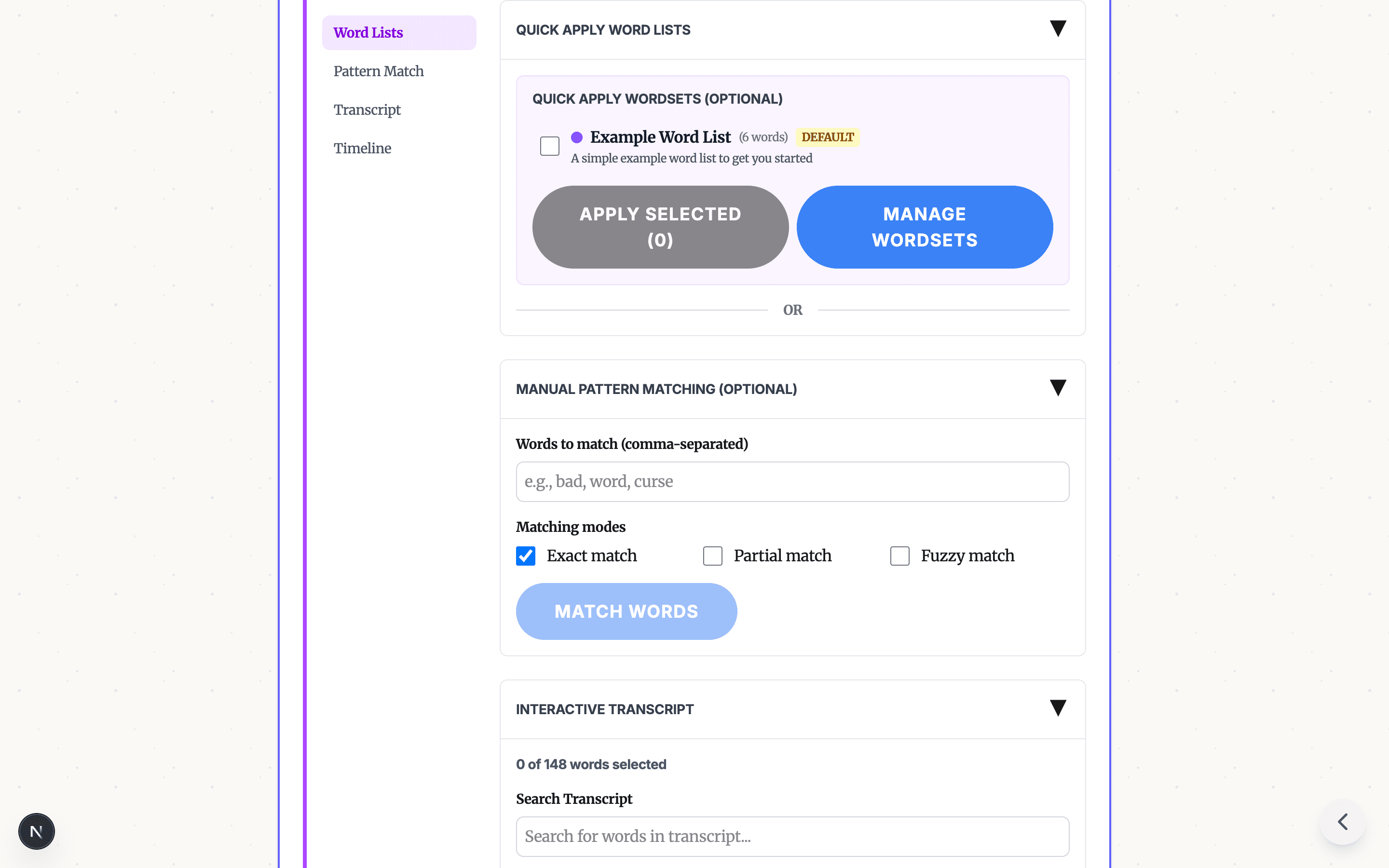
Quick Word Lists
Apply pre-built profanity lists with one click. This catches common inappropriate words automatically, saving you the time of manually reviewing the entire transcript.

Quick apply word lists for common profanity filtering
Create Custom Word Lists for Your Classroom
One of the most powerful features for educators is the ability to create and save custom word lists. This is especially valuable when you:
- Work with content that uses the same problematic words repeatedly
- Need to censor specific terms for different grade levels
- Want to prepare multiple videos for the same unit or lesson
- Share resources with other teachers in your department
How to create a custom word list:
- Click "Manage Word Lists" in the Word Lists tab
- Create a new list with a descriptive name (e.g., "Middle School History" or "Science Documentary Terms")
- Add words you commonly need to censor
- Save the list—it's stored in your browser and available for all future videos
Word lists are saved locally in your browser, so they persist between sessions. Create lists once and reuse them throughout the school year. This is perfect for teachers who regularly show educational videos and want a consistent, quick workflow.
Tip: Create grade-level-specific lists. What's appropriate for high school seniors might not be suitable for middle schoolers. Having separate lists lets you quickly apply the right filter for each class.
Manual Selection
Click directly on words in the transcript to mark them for censoring. This gives you precise control—useful when context matters (the same word might be fine in one sentence but inappropriate in another).

Click on words in the transcript to select them for censoring
Pattern Matching
Enter specific words to find and censor throughout the video:
- Exact match: Catches only that specific word
- Partial match: Catches variations (e.g., entering "damn" also catches "dammit")
- Fuzzy match: Catches similar-sounding words, helpful for catching variations the AI might have transcribed differently

Enter words to match with different matching modes
Step 4: Preview and Download
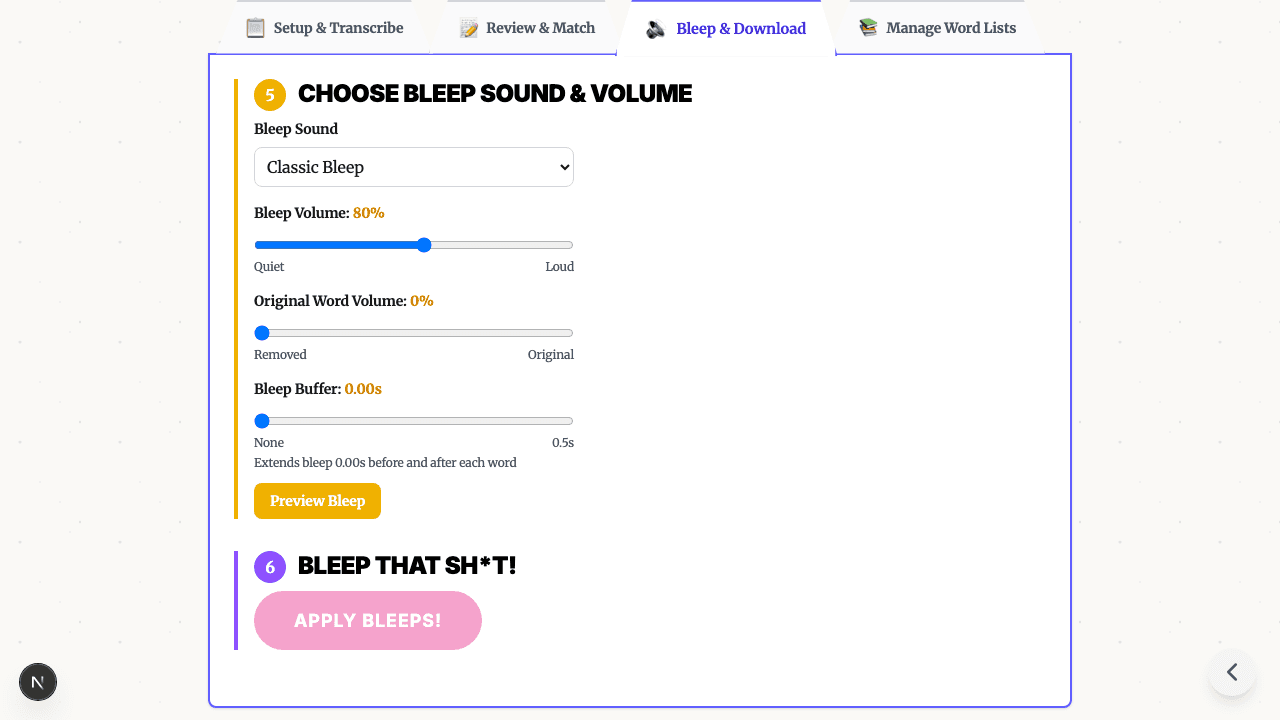
Choose your bleep sound (the classic TV censor tone works well for classroom settings), preview the censored sections, and download your edited video. The original video file remains unchanged.

Preview your censored video and download when ready
Get Started Today
Ready to make your next educational video classroom-appropriate? Start in Bleep Studio and try it now. No software to install—just upload, censor, and download. Looking for a general overview? Read how to censor audio and video online for all features.
Your students deserve access to the best educational content. Don't let a few inappropriate words stand in the way of great learning opportunities. Visit our educator hub for pricing, FERPA guidance, and more resources for teachers.
Bleep That Sht! is a free, privacy-focused tool for censoring audio and video content. Perfect for teachers, content creators, and anyone who needs to quickly clean up media files.*
Need to process longer files? Bleep Studio offers cloud-powered transcription for audio and video files up to 2 hours. See plans.
READY TO CLEAN CLASSROOM VIDEOS?
Start in Studio for longer classroom videos, saved projects, and free cloud transcription hours.
START IN STUDIO FREERelated Articles

How to Make YouTube Videos School-Appropriate (Free Tool for Teachers)
Turn any YouTube video into classroom-appropriate content. Free AI tool auto-detects and bleeps profanity in minutes — works on Chromebooks, no installation.
Profanity Filter List for Audio, Video, and Text
A practical profanity filter list strategy for creators: what to detect, what to review manually, and how AI tools help bleep audio or video without over-censoring.
Bleep Sound Effect: How to Add a Censor Beep to Audio or Video
Choose a bleep sound effect, silence, or noise for censoring profanity in audio and video, then place it with transcript timestamps before export.