How to Bleep Profanity in Podcasts: Create Clean Versions Fast
Whether you're a solo podcaster or running a network, there are times when you need a clean version of an episode. Maybe an ad partner requires it, maybe you want to expand to family-friendly platforms, or maybe a guest said something you didn't expect. Whatever the reason, manually scrubbing through an hour of audio to find and bleep every instance is painful.
Here is how to build a reviewable first pass without manually scrubbing from scratch.
Why Podcasters Need Clean Versions
There are several scenarios where a bleeped version of your episode is valuable:
- Ad-friendly distribution: Some ad networks and sponsors require clean audio. Having both versions gives you another distribution option
- Platform requirements: Apple Podcasts, Spotify, and others allow you to mark episodes as explicit — but having a clean version lets you reach listeners who filter explicit content
- Repurposing clips: Short clips for social media, YouTube Shorts, or audiograms work better without profanity
- Guest interviews: Sometimes guests drop unexpected language. Rather than re-recording or cutting entire segments, just bleep the specific words
- Corporate podcast feeds: Internal company podcasts or branded content usually need to stay professional
The Traditional Way (And Why It's Slow)
The usual approach involves:
- Import the audio into Audacity, GarageBand, or a DAW
- Listen through the entire episode to find each word
- Manually select each word on the timeline
- Either mute the selection or paste in a bleep sound effect
- Export the new file
For a longer episode, that manual pass can take substantial time. And if you miss one, you might not catch it until a listener complains.
The Faster Way: AI-Powered Censoring
Bleep That Sh*t!'s Podcast Profanity Remover turns that into a focused browser workflow:
- Choose a short spoken file — use an MP3, WAV, M4A, MP4, MOV, or AVI under 10 minutes
- Set the words to review — start with the disclosed 46-term English profanity list and add show-specific terms if needed
- Scan and review — the browser speech model creates word-level timing, then you confirm or change every selected match in context
- Choose the treatment — use a classic bleep, brown noise, or silence and adjust the timing cushion if needed
- Preview and export — listen to the whole result, then download clean audio or video plus an SRT, TXT, or JSON transcript artifact
The first scan downloads the speech model, so timing varies by device and connection. Transcription can miss or mistime words; the review and full-result preview are required parts of the workflow.
Step-by-Step Walkthrough
1. Upload Your File
For a short spoken episode or clip, open the free Podcast Profanity Remover and choose your MP3 or MP4 file. It generates the transcript you will use to review and select words locally in the browser. For longer episodes, saved projects, and recurring production, use Bleep Studio.
The free browser tool handles files up to 10 minutes. For full-length episodes, the cloud processing tier supports files up to 2 hours.
2. Transcribe
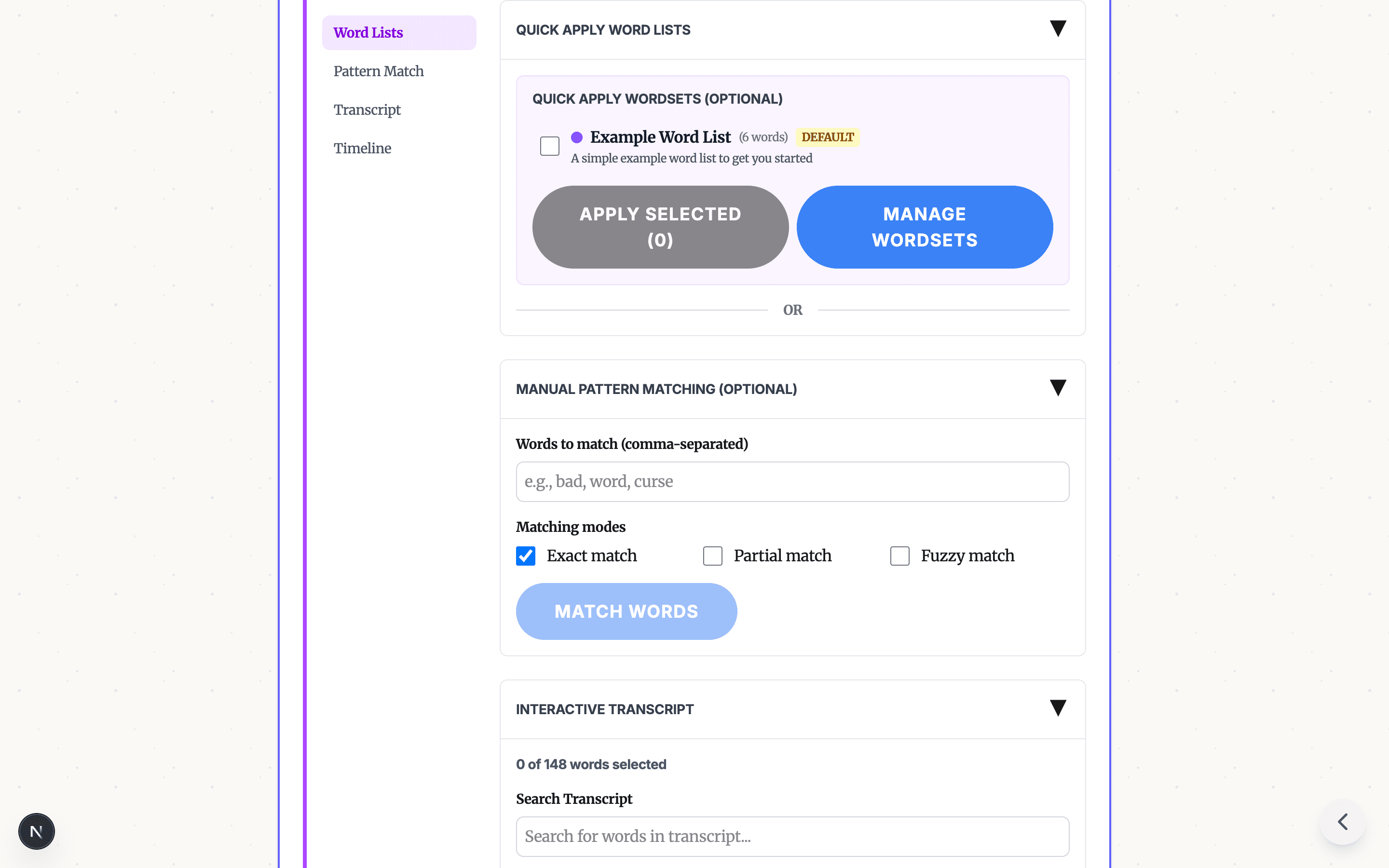
Keep the English profanity starter list enabled, or turn it off if you only want to check your own exact terms. Add any show-specific or sponsor-sensitive terms before selecting Scan spoken words. The first scan downloads the browser speech model; keep the tab open while progress is shown.
3. Select Words to Censor
When the scan finishes, the focused review step shows the transcript and selected matches together:
- Starter-list matches: The disclosed 46-term list uses exact matching, including listed variants
- Custom exact terms: Add a term for this run and apply it to the current transcript
- Interactive transcript: Click individual timed words to add or remove them from the clean-version edit
- Quality warning: If some transcribed words cannot be timed, the tool warns you that they cannot be selected in the review
4. Configure Your Bleep
In the same review step, choose how the selected moments should sound:
- Treatment: Classic bleep, brown noise, or silence
- Timing cushion: The normal 0.30-second default extends the edit around approximate speech timestamps; reduce it if adjacent speech is caught
Then select Create clean version. This local render can take longer for video while its audio is remuxed.
5. Download
Preview the whole result before publishing. Download clean audio as WAV or clean video as MP4, plus a timestamped SRT, readable TXT, or JSON transcript artifact. Treat the export as a reviewed edit, not a guarantee that it satisfies every platform or sponsor policy.
Tips for Podcast-Specific Censoring
- Add show-specific terms: Enter sponsor-sensitive names or phrases for the current local run
- Review listed variants: Exact matching only catches terms and variants that are actually present in the starter list or your custom terms
- Preview before publishing: Always listen to the bleeped sections to make sure the timing sounds natural
- Keep both versions: Distribute the explicit version on platforms that support it, and the clean version everywhere else
- Move recurring work to Studio: Saved projects, reusable word lists, longer files, and recurring production are intentionally outside this free one-file experiment
Privacy and File Handling
The Podcast Profanity Remover processes the selected short media and transcript in the browser tab rather than uploading them to Bleep servers. The first scan downloads speech-model assets. Experiment analytics omit filenames, transcript text, custom terms, and media contents; they record only safe enums and counts.
For longer files or recurring work, Studio uses a separate cloud workflow and requires an account. Review that workflow before uploading sensitive material.
Get Started
Ready to create a clean version of your next short spoken episode? Try the free Podcast Profanity Remover. If you need longer files, saved projects, or a recurring workflow, start in Bleep Studio.
Need to process full-length episodes? Start in Bleep Studio for the longer-file, saved-project workflow.
READY TO CLEAN A SHORT PODCAST CLIP?
Try the focused browser workflow with a short spoken episode: scan, review every match, and export clean audio plus a transcript without creating an account.
TRY THE PODCAST CLEAN TOOLRelated Articles
How Professional Podcast Editors Add Auto-Bleep to Their Workflow
A podcast editor workflow for auto bleep podcast cleanup: batch profanity review, clean exports, and faster podcast post production with Bleep That Sh*t.

YouTube Demonetization: How to Fix Profanity Before Upload
A practical guide to reducing YouTube demonetization risk from profanity: review the opening, titles and thumbnails, bleep risky words, export a clean version, and keep your original edit intact.
Profanity Filter List for Audio, Video, and Text
A practical profanity filter list strategy for creators: what to detect, what to review manually, and how AI tools help bleep audio or video without over-censoring.