YouTube Demonetization: How to Fix Profanity Before Upload

You uploaded a video, checked back in YouTube Studio, and there it is: the yellow dollar sign. Limited ads. The video may still be live, but its earning potential is already lower than you expected.
Profanity is not the only reason YouTube limits ads, but it is one of the easiest issues to fix before upload. If the rest of your video is advertiser-friendly, a clean audio pass can reduce avoidable demonetization risk without forcing you to re-edit the whole project.
What Triggers YouTube Demonetization
YouTube reviews the video itself, the audio, the title, the thumbnail, the description, and the broader context. Its advertiser-friendly content guidelines distinguish between mild language, stronger profanity, hateful or harassing language, and content where profanity is frequent or prominent.
The most common profanity-related risk areas are:
- Strong language in the opening - The start of the video sets context for viewers and ad systems. If the first thing a brand hears is strong profanity, clean it up.
- Strong language in the title or thumbnail - YouTube evaluates packaging too, not only the spoken audio.
- Repeated strong language throughout the video - A single mild word is different from heavy, repeated profanity across the whole upload.
- Words that change meaning by context - Quoted, educational, comedic, or newsworthy use can be treated differently, but automated systems may still need a clean signal.
- Harassment, slurs, or hateful language - Bleeping is not a workaround for content that violates YouTube's broader policies.
The practical takeaway: treat profanity cleanup as an ad-suitability pass. Do it after the edit is locked, before upload, and before momentum starts building on the wrong version.
The Yellow Dollar Sign Explained
When you see a yellow dollar sign next to a video in YouTube Studio, it means the video has limited ads. The exact impact varies by channel, topic, region, and advertiser demand, but the statuses usually mean:
| Status | Meaning | What to do |
|---|---|---|
| Green dollar sign | Full ads are enabled | Keep your clean export and metadata as-is |
| Yellow dollar sign | Limited ads are enabled | Review the content, title, thumbnail, and request review if appropriate |
| Red or no monetization icon | Ads are unavailable or disabled | Check policy status before reuploading |
Manual review can help when the classifier misunderstood the video. It is less helpful when the source file really does contain strong or repeated profanity that you could have cleaned before publishing.
Why Fixing After Upload Is a Bad Strategy
Appealing after upload can work, but it is a slow and uncertain way to protect launch revenue.
The launch window matters. New videos often get their strongest recommendation and subscriber traffic soon after publishing. If monetization is limited during that window, you may miss revenue even if a later review succeeds.
Reviews take time. YouTube says reviews usually complete within days, and timing can vary. Smaller channels may feel that delay more sharply.
Reuploading splits momentum. A clean reupload can fix the source file, but the original views, comments, and watch history stay with the old video.
The better workflow is simple: export your finished edit, run a profanity pass, preview the censored version, then upload the clean file.
Start With the Opening, Title, and Thumbnail
Use Bleep Studio when the edit is finished and you want to clean only the risky words. If you are on your phone, use the mobile profanity remover to make a quick clean version without reopening a desktop editor.
- Upload or open the final edit.
- Transcribe the audio so you can review exact words and timestamps.
- Search the opening and any repeated strong language for risky terms.
- Check the title and thumbnail language too.
- Bleep, mute, or replace the words most likely to affect ad suitability.
- Preview the opening again before exporting.
This keeps the original performance intact while giving YouTube and advertisers a cleaner signal.
What to Do With Each Profanity Match
| Match | Best fix | Why it helps |
|---|---|---|
| Strong profanity in the intro or opening | Bleep or silence it | The opening can shape ad suitability and audience expectations |
| Strong language in title or thumbnail | Rewrite or obscure it | YouTube evaluates title and thumbnail language too |
| Repeated profanity throughout | Bleep repeated terms, then preview rhythm | Too many censor sounds can distract from the video |
| Quoted or educational profanity | Consider partial bleeping and clear context | YouTube says context can matter |
| Sponsor-read or brand segment | Use the strictest clean version | Brand-safe sections should be easy for advertisers to approve |
If the video is already edited, you do not need to reopen a full timeline editor for every small profanity fix. Start with Censor Video, then read How to Bleep Words in Video for a deeper workflow with transcripts, word lists, and previewing.
How to Bleep Profanity Before Upload
With Bleep Studio, you can censor specific words in a video in your browser, without exporting a new timeline from Premiere Pro, Final Cut, CapCut, or iMovie.
Step 1: Upload Your Video
Drag and drop your MP4, MOV, AVI, or WebM file. The editor is built for creators who already have a finished export and only need a clean version for YouTube.
Step 2: Generate a Transcript
The transcript gives you word-level timing, so you can search for specific terms and jump directly to each match.
Step 3: Choose What to Censor
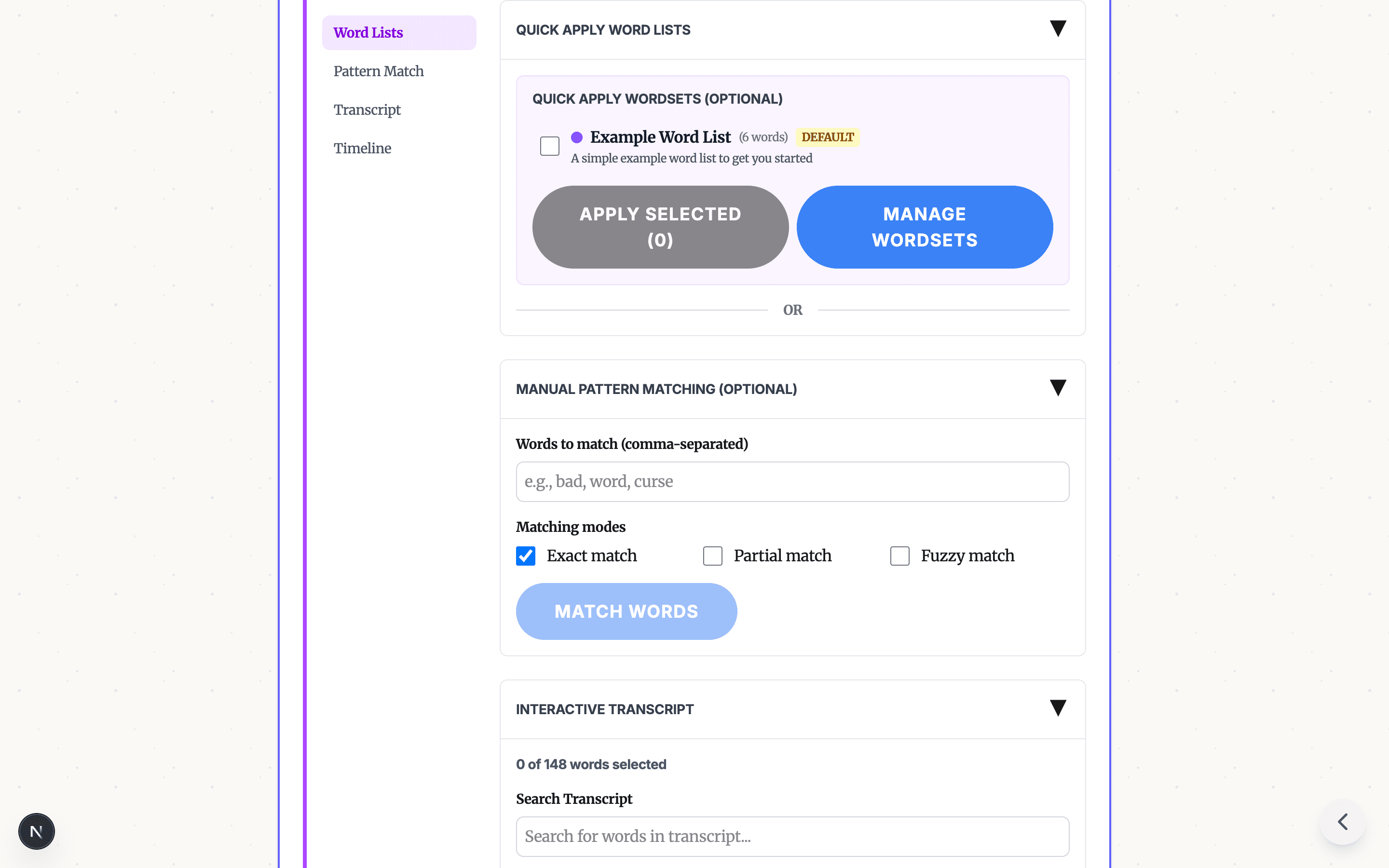
Use a profanity list for the first pass, then review the matches manually. You can censor repeated words, select individual timestamps, or leave words uncensored when the context is important and low-risk.
Step 4: Preview and Export
Choose a classic bleep, silence, noise, or a custom sound. Preview each edit so the censor timing does not clip nearby words, then download the clean MP4 for upload.
What Counts as Ad-Friendly
YouTube's guidance is contextual, so avoid treating any single phrase as a guaranteed rule. In general:
- Mild language used sparingly is usually lower risk.
- Strong profanity in prominent places is higher risk.
- Heavy or repeated profanity can limit ads even if the title and thumbnail are clean.
- Slurs, hateful language, harassment, or shock-focused packaging can create larger policy problems.
- Muting or bleeping risky words can help, but the full video still needs to be suitable for advertisers.
That is why a transcript-based pass works better than guessing. You can see the words, decide what actually needs cleanup, and keep the rest of the video natural.
Pro Tips for Staying Monetized
Keep a clean export workflow. Save the original project and the clean YouTube version separately. If review feedback changes, you can adjust the censored version without losing your edit.
Create reusable word lists. Gaming creators, podcasters, classroom creators, and reaction channels often need different filters. Start with a general profanity list, then add the terms that show up in your niche.
Do not over-bleep. Too many censor sounds can make the video harder to watch. Silence, partial muting, or a softer bleep can be better for repeated words.
Review packaging before upload. A clean video with a risky title or thumbnail can still run into monetization issues. Check every viewer-facing surface.
Use manual review thoughtfully. If your video is educational, newsworthy, or clearly within YouTube's rules, manual review may help. If the problem is obvious profanity in the source file, a clean re-export is usually faster.
Get Started
Ready to reduce profanity-related monetization risk? Start in Bleep Studio, preview the clean version, and upload the safer export to YouTube.
Already dealing with the yellow dollar sign? Make a clean version first, keep the original edit intact, and decide whether reuploading or requesting review makes more sense for the video you already published.
For videos longer than 10 minutes, premium plans offer cloud-powered processing for larger files.
Related guides:
- How to Keep YouTube Videos Ad-Friendly - Step-by-step monetization walkthrough
- Profanity Filter List for Audio, Video, and Text - Build a reusable list before you export
- How to Bleep Words in Video Without Premiere Pro - Tool comparison
READY TO BLEEP YOUR CONTENT?
Start in Studio for cloud transcription, saved projects, reusable word lists, and repeatable clean-version exports.
START IN STUDIO FREERelated Articles
How to Bleep Profanity in Podcasts: Create Clean Versions Fast
Learn how to censor profanity in podcast episodes for ad-friendly distribution. Free browser tool — no audio editing experience needed.
Profanity Filter List for Audio, Video, and Text
A practical profanity filter list strategy for creators: what to detect, what to review manually, and how AI tools help bleep audio or video without over-censoring.
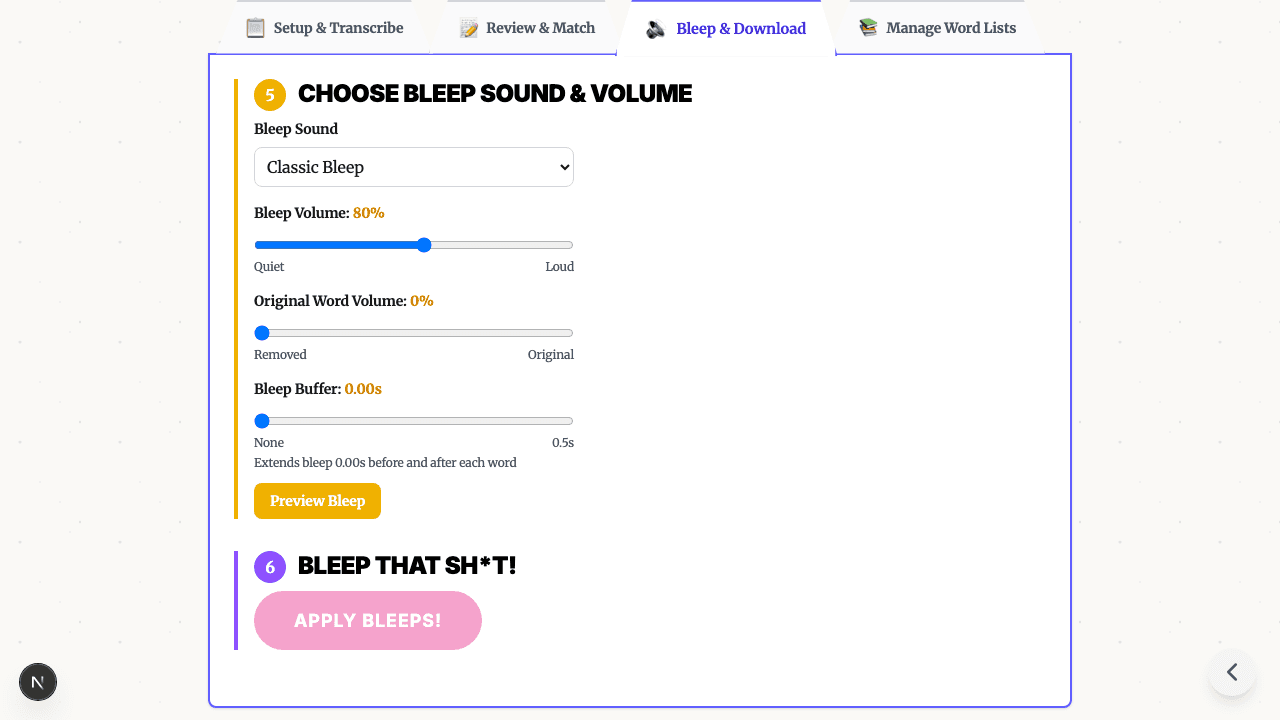
Bleep Sound Effect: How to Add a Censor Beep to Audio or Video
Choose a bleep sound effect, silence, or noise for censoring profanity in audio and video, then place it with transcript timestamps before export.